Before you start
This guide works for Taskify Web, which you can use in your browser today, and for the Android app on Google Play. One account works everywhere. If you get stuck, contact support.
Start with one project and a few clearly defined tasks. Give each task an owner and a deadline, then keep its status up to date so your team can see what needs attention. Working alone? Your personal workspace is ready as soon as you sign up.
Step 1
Create your Taskify account
Open Taskify Web, or install the Taskify app from Google Play, and sign up with your email address, then complete email verification with the one-time code sent to you. You can also continue with Google or GitHub.
- Use an email address you can access so you can receive verification and password-reset codes.
- If the verification email does not arrive, check your spam folder and confirm that the address you entered is correct.
- Your private personal workspace is created automatically, so you can add tasks straight away.
Step 2
Set up your first project
Create a project for a specific piece of work, such as a website update, an exam or a client job. A project keeps related tasks and people together and shows progress automatically.
- Choose a name your team will recognise and set the project due date if the work has one.
- Use the project to group tasks that contribute to the same outcome. You can mark it Completed or Archived when the work is finished.
Step 3
Create a team workspace and invite people
Create a team workspace, invite people by email or username and choose a role for each: Owner, Admin, Manager, Member or Viewer. Then add the right people to your project.
- Invited people see the invitation in the app and join with one tap. You are notified when they accept or decline.
- Give clients or observers the Viewer role so they can follow progress without changing anything.
- Agree who will own each task before assigning work, so everyone knows what they are responsible for.
Step 4
Create and assign a task
Choose the project in the task-creation screen, add a clear title and description, then set the due date, priority and assignees.
- Write a title that describes an action, such as "Review the landing page copy".
- Use the description to explain the expected result and any details your team needs.
- Set a due date and reminder when timing matters. Choose the priority based on how urgent the work is.
- Add the people responsible, attach labels if you use them, save the task and check the project and assignees in the confirmation. Break big tasks into subtasks.
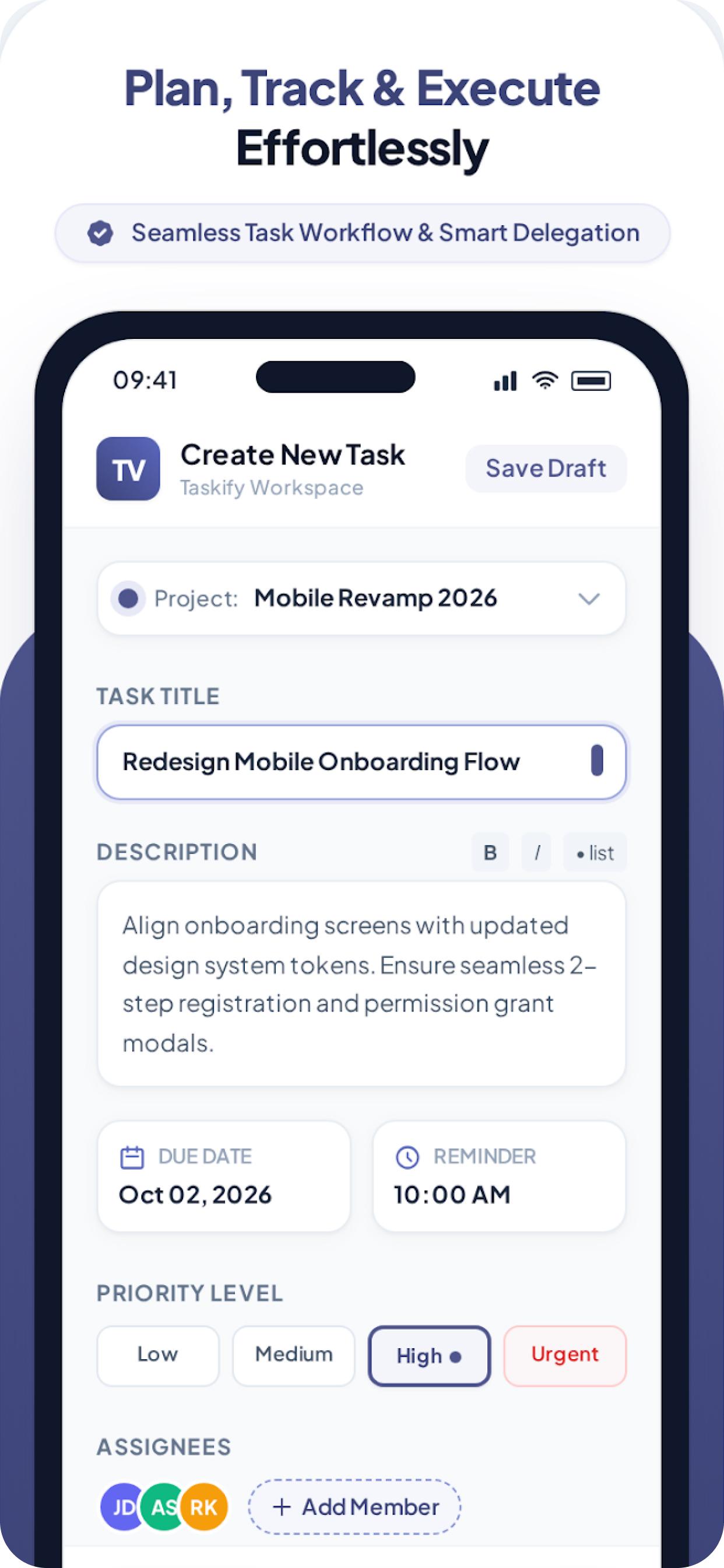
Task creation preview: put the task details and ownership in one place. Step 5
Review details and follow progress
Open the task details and keep the status current as work moves from To do through In progress and In review to Done. Use Blocked when a task is waiting on something.
- After creating a task, check its project, deadline and assignees before starting work.
- Update the status as the work progresses so teammates can see what is ready for review.
- Mark work Done when it has met the agreed requirements. Open the task's Activity tab to follow changes.
- Open My Day each morning to see what is overdue or due today across all your workspaces.
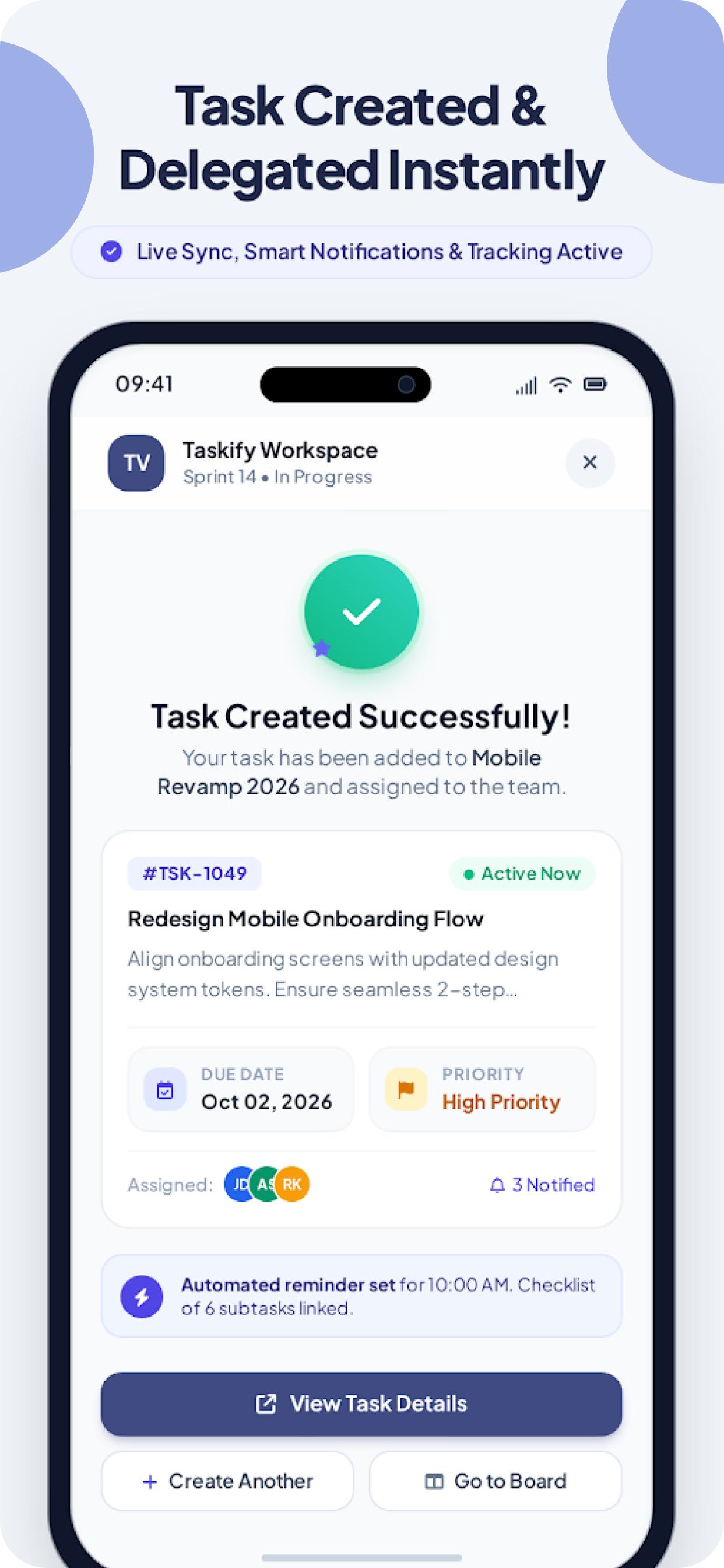
Task confirmation preview: check the deadline, priority and assigned team. Step 6
Keep the conversation with the task
Use task comments, @mentions and attachments to share updates and files, and team chat for quick conversation. Notifications help you follow changes without chasing separate messages.
- Add a comment when you need clarification, and @mention a teammate to notify them.
- Attach relevant files (up to 20 MB each) so teammates can find them alongside the discussion.
- Use the Chat tab for one-to-one or group conversations, and the notes tab for private notes with reminders.
- Review notifications for changes that affect your work, including tasks that are due soon.
Common setup questions
Waiting for a verification email?
Check the email address you used and your spam folder. If verification is still blocked, contact Taskify support with a description of what happened.
Cannot find a shared project or workspace?
Confirm that you are signed in with the account that was invited. Check the Invitations screen for a pending invitation, or ask a workspace Admin to check your membership and role.
Need help with a bug?
Tell support what you were doing, what happened, and whether you used Taskify Web (with your browser) or the mobile app (with its version).
For account deletion and data requests, read your privacy choices.